Showing posts with label iphone apps. Show all posts

Wednesday, April 8, 2009

Encoding for iPhone, OGM's and MKV's

Well, a while ago DirtyFinger posted a tutorial on how to encode hardcoded videos for iPhone, I am coming to the rescue for the most annoying thing on earth, softcoded videos... I try to avoid these whenever possible because, though they are perfect for watching on your computer, they are HORRIBLE for iPhone.

Edit:
Hey Guys, I have just realized something, the reason I though Mediacoder was unreliable for MKV's was wrong, just don't use built in subtitles, this is much quicker, and much easier. Demux the file like below, but only demux the subs, then in mediacoder, in subtitles, select your file, DON'T try to use the built in ones, its more trouble than its worth, this requires much less time and effort, and the next series to come out will show this method :) , I am still downloading, but they were MKV's so I played around with mediacoder and mkv's some, and found the best way to do it(in my opinion). Oh, you still need to select audio of course, just make sure its the right one by hitting "Play".

The first step is to get this software, I assume you already have MediaCoder iPhone edition.
WinFF
MKVExtractGUI and/or OGMDemuxer
And MKVtoolnix.
WinFF is on http://winff.org
MKVExtracterGUI and MKVtoolnix are here, under editors.
OGMDemuxer is here, and it will demux all the files by dragging them onto the executable of OGMDemuxer, from there, you can follow the tutorial, skipping the Extraction process.
Now, download all these things, and make sure MKVExtractorGUI is in the same folder as MKVtoolnix.
MKV's:
Firstly, open up MKVExtractorGUI and import your MKV file.
Now select all the video and audio streams and the subtitles(srt or ssa most likely).

Now hit extract. This will take a few seconds, or longer if its an anime movie or something.
You should have at least a video, audio and subtitle files, and a text file for the chapters, I have english audio, japanese audio, video and two subtitle tracks.
Now you want to open up MKVMergeGUI, which came with MKVToolNix.
Select the audio and video files you want, in my case, the japanese.
Oh, the video should be AVI and the audio should be OGG.
SKIP THIS NOW, FOLLOW THE NEW INSTRUCTIONS ABOVE:
"
Now hit start muxing, you should now have one MKV with japanese audio and video. Your thinking, what about the subs, DON'T SELECT THEM! THIS COMES LATER. Now open winff and select your Japanese audio and video mkv.
(I almost forgot to mention, if you skip this step, and encode straight with mediacoder, the audio and video will be misaligned, So don't get any ideas :) !)
Convert it to iTunes and iPod, though other hardcoded formats will most likely work as well(and faster maybe... I should try it. Edit: I tried it with mpg(in WinFF, NTSC DVD Fast(LQ) ), no it's not low quality, its just low for TV not for iPhone :) )
Once that's done(it will take a while), open that file in mediacoder(Mines an MP4 because I already converted it, yours will be an mv4 though).
"
Now you want to goto the bottom, select "Subtitle" and pick your SRT or SSA(maybe .sub even) file, select your font and size, do any resize or cropping, and convert it(Again) to ipod. When it's done you should have one hardcoded MP4 file ready for iPhone!
Edit:
Hey guys, this way is the most reliable, I've found that it almost always works, but you can do something similar in mediacoder to, I will explain this later.


Here's a more efficient, but less reliable way to do it, I've found it doesn't work nearly as often(Though sometimes videos just won't work, this is normal, search for a different version or give up :) ).
First, we need to find out about your video and audio, right click the name of your video(in mediacoder) and hit "Details of selected file". Now there should be a window open, if your scroll down you will see different video, audio and subtitle id's(under each's respective section). Make note of these. Now under the "Audio" button in the bottom window, select the id you want, then play the video to make sure it's right. under subtitles, enter the subtitle id, and so on. I suggest checking every time, and doing it for each video, because if its by different groups, the ID's can be different.
Here's what a normal MKV would look like under the "Details for Selected File" window, I highlighted the ID's.
"General
Complete name : D:\Users\Daniel\Desktop\[V-A]_D.N.ANGEL_-_01_[3AFD2F98].mkv
Format : Matroska
File size : 213 MiB
Duration : 23mn 22s
Overall bit rate : 1 272 Kbps
Encoded date : UTC 2009-04-09 20:08:16
Writing application : mkvmerge v2.6.0 ('Kelly watch the Stars') built on Mar 24 2009 15:23:17
Writing library : libebml v0.7.7 + libmatroska v0.8.1

Video
ID : 1
Format : MPEG-4 Visual
Format profile : Streaming Video@L1
Format settings, BVOP : Yes
Format settings, QPel : No
Format settings, GMC : 3 warppoints
Format settings, Matrix : Default
Codec ID : XVID
Codec ID/Hint : XviD
Duration : 23mn 21s
Bit rate : 954 Kbps
Width : 640 pixels
Height : 480 pixels
Display aspect ratio : 4/3
Frame rate : 23.976 fps
Resolution : 24 bits
Colorimetry : 4:2:0
Scan type : Progressive
Bits/(Pixel*Frame) : 0.129
Writing library : XviD 1.0.2 (UTC 2004-08-29)

Audio #1 (Under Audio it will start at zero, so this would actually be ID:0)
ID : 3 (In audio, this doesn't matter for some reason...)
Format : Vorbis
Format settings, Floor : 1
Codec ID : A_VORBIS
Duration : 23mn 22s
Bit rate mode : Constant
Bit rate : 128 Kbps
Channel(s) : 2 channels
Sampling rate : 48.0 KHz
Writing library : libVorbis 1.0 (UTC 2002-07-17)

Audio #2 (Under Audio it will start at zero, so this would actually be ID:1)
ID : 4 (This doesn't matter for some reason...)
Format : Vorbis
Format settings, Floor : 1
Codec ID : A_VORBIS
Duration : 23mn 22s
Bit rate mode : Constant
Bit rate : 128 Kbps
Channel(s) : 2 channels
Sampling rate : 48.0 KHz
Writing library : libVorbis 1.0 (UTC 2002-07-17)

Text
ID : 2 (I'd be careful with subs though, they can screw with you sometimes... It's usually better to ignore the subs included and use a demuxed sub file, even if you use this method.)
Format : UTF-8
Codec ID : S_TEXT/UTF8
Codec ID/Info : UTF-8 Plain Text"
Hope it works for you,
Daniel

Sunday, September 7, 2008

Video encoding for the iPhone

Since people have asked repeatedly AND I finally got off my lazy ass I decided to give a short little tutorial on video encoding light.

I won't suffer you to learn MEncoder, even though this tool might be your last resort in case standard methods won't do. No, the software of my choice is the popular MediaCoder, which conveniently also has a special iPhone Edition. You can just get the standard version and make iPhone movies, too, but trust me when I say that you don't want to.

So, before you do anything else: 


You might also want to install the latest Firefox browser since some advanced settings (which you probably won't need) rely on the Gecko engine that comes with it.

Install and start and you will see this:

The user interface is pretty much intuitive and the part that will give you occasional problems lies withing the source files you wish to encode. But more of that later. Find some videos and drag them into the work are and you're ready to go. 

There are several possible kinds of source files which each provide you with a different problem. I'll start with some easy ones and will add others at a later time. For now, let's start with:

AVI videos with hardcoded subtitles
The avi-format is a simple container that usually contains a video and audio stream and nothing else. Subtitles are inseperable from the video stream, which is why it's called hardcoded. This is a problem if the video resolution does not match your display resolutions (480x320).
This is nearly always the case, so you have to both resize the video and crop the parts you don't want. Happily the encoding software does the resize job automatically. The job left to do is choosing the target resolution and the cropping.


You'll mostly encounter videos that are far wider than what your iphone can display (after resizing), so snipping the sides is tempting. Howeverm the problem with hardcoded subtitles is that you can't crop the sides of the video because you'll very likely eliminate some parts of the subs. In that case I usually change the target resolution to 576x320, which allows you to zoom between fullscreen and "cinematic borders" on the fly.

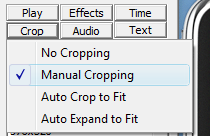
Press the crop button and select Manual Cropping. 


Using the left mouse button you can drag the running movie inside the frame until you are satisfied with the placement. You'll figure it out faster than I'll figure out how to explain to you how to figure it out. The border represents your ipod screen dimension, btw., so choosing a different target resolution in the main window will give you a larger window. Use the forward/backward buttons to navigate the playing movie.
Small note: This is pretty damn comfortable. You don't want to know how awkward this part can - all too often - get. 
Press done when you are done.

Beneath all those buttons you see a couple of select-boxes. You can play with them if you want or just leave them on default, wich should usually suffice. 

Press the start-button and wait for it to process your movie. After a short while it will finish (ok, it's a long while). 
Congratulations! Your first self-encoded iphone video.

In case you have several movies you wish to convert: Make sure you select all videos BEFORE you start the cropping-tool. Or else only one item in the list will get cropped as wanted.


So, that's it for today. I'll write something about the more advanced containers with multiple streams (mkv, ogm) later, although I'm sure you will figure that out by yourself.

By the way: You'll encounter numerous releases that simply won't encode like you want to. There are some workarounds for that (some involving MEncoder) but this is stuff for headaches. And some videos just won't work, no matter what you do. So don't get too worked up if that happens - it seems to be the norm. ^_^

Wednesday, April 16, 2008

iComics - The iPhone Manga Reader Installation Guide

Use your iPhone/iPod Touch as portable manga reader.

Normally you'd expect that it should be a piece of cake. After all, the iphone has an excellent picture viewer and transferring pictures to and from the iPhone is supported by iTunes ... but for some arcane reason all pictures get scaled down - optimized - for out favorite handheld device. Good enough for pictures but it's nearly impossible to read anything these converted manga pages.

Happily there are other solutions, all requiring you to jailbreak your iphone. The second method I tried was using the browser application as picture viewer. This worked pretty good, but it's too complicated to realize in a hurry: You'd have to install a webserver on your iphone and write a script to generate html-files for each picture of a manga. After copying them to the iphone's site directory I was able to browse the manga at localhost, which worked pretty well in good quality and quite comfortably.

However, it's simply easier using a dedicated program for just that purpose: iComic

In the following paragraphs I'll steer you through the tedious process of getting that thing to run on your iPhone/iPod touch, which isn't always as unproblematic as one might hope.
I used this method on the following system configuration:

PC
  • Windows XP
  • iTunes 7.6.2.9
  • ZiPhoneWin 3.0
Mobile device
  • iPod Touch 16gb
  • Firmware 1.1.4
  • iComic 0.10

  1. Jailbreak your iPhone.
    To do this, download the best jailbreaker from ZiPhone at his homepage: http://www.ziphone.org/
    Don't worry, it's pretty comfortable these days. See a video on CNET with a live jailbreak: http://www.cnettv.com/9742-1_53-50001833.html
  2. Prepare your jailbroken iPod.
    This means installing software using the newly installed installer application. Enable WiFi, Edge or whatever for Internet connection. Tap on the installer icon. This might take a while, since the installer will scan the net for new programs to install. The first thing we have to do is to enable access to the iPod's file system. If you're afraid of doing so then kiss iComic goodbye.
    Tap 'Install' on the bottom panel. The software repository is organized in categories and i'll just list the categories and applications you'll need:
    • System -> BSD Subsystem
      Unix tools for the iPhone. Needed for ssh.
    • System -> OpenSSH
      Allows remote access
    • Network -> Pure-FTPd
      If you prefer FTP to ssh, then use this app instead of OpenSSH and BSD. I have both, so no worries.
    • Utilities -> BossPrefs
      A system management app. Allows you to enable/disable ssh, ftp and other services. Pretty much a hub for system settings.
    This is pretty much all you need for preparation.
  3. Install iComic.
    There are several ways to do this but I'll only cover the installer version. If you want to do it manually, download the latest version from the author and good luck to you.
    Enter the installer again. This time tap on sources. Then tap on 'Edit' in the top right corner, followed by 'Add' in the top left.
    Enter this string:
    http://hpcgi3.nifty.com/moyashi/ipodtouch/repository.cgi
    Wait for the update. After that you can install iComic:
    • Multimedia -> iComic (1.1.3)
    Ignore the 1.1.2 version unless you have the 1.1.2 firmware installed. iComic 1.1.3 works with both 1.1.3 and 1.1.4 firmware.
  4. Install ssh/ftp file-transfer software .
    Since we provided the iPod with ssh/ftp access, you'll need a program on you PC to actually chuck them over. My recommendation:
    I don't know any good Mac Programs. Drop me a note and I'll add one.
    Download the software and install then start it.
  5. Connect to iPod and Transfer files.
    Start BossPrefs. You should see a SSH or FTP trigger right from the start. If not, enable it in the 'Config' menu in the upper left. Enable SSH/FTP and WiFi.
    Switch to your SSH client (e.g. WinSCP) and create a new connection. Fill in these values:
    • Host name: [your iPod IP] e.g. 192.168.2.150
    • Protocol: SCP
    • Port: 22
    • Username: root
    • Password: alpine
    For some reason, I sometimes have problems connecting with a preset password. If you have the same problem, erase the password and just type it manually when prompted. Save and connect.
  6. Enable english language
    Use WinSCP to navigate to the installation path of the iComic application:
    • /Applications/iComic
    You'll find a few files and a subfolder named "Japanese.lproj". Rename or remove the "Localizable.strings"-file inside that folder and the iComic application will default to english language. Alternatively you can enter the folder and translate the "Localizable.strings" file to your language.
  7. Copy Manga to the correct target folder.
    Emphasis on correct. Depending on the iComic and firmware version the target folder for comics are at different locations.
    For iComic 0.10 (1.1.3) the correct folder is at
    • /var/mobile/Media/Comic
    For older versions the path was
    • /var/root/Media/Comic
    Create the folder if it doesn't exist yet. Enter the folder and then simply copy zip-archives with pictures into it. You can even organize it by creating subfolders.
    Note that all mangas have to be zipped and all pictures inside the zip have to be either jpg, png or gif.
  8. Start iComic
    Everything should work fine now. iComic has many options to tweak, so look inside and experiment. Personally, I prefer flipping pages with the "invisible buttons" although I don't know if they are supposed to be invisible or if that's just a bug.
    Enable "Button Page Slide" in the settings menu and then you'll be able to navigate like shown in the picture.
That's it.
I'll think about releasing iphone ready mangas but most mangas already are. You just have to stuff the images in a zip and you are done.

Cheers !

[update]
I case you encounter difficulties you might want to discuss it in some forums. Try these for help:
* http://www.modmyifone.com/forums/native-iphone-ipod-touch-app-launches/20955-icomic-manga-reader.html
* http://www.ipodtouchfans.com/forums/showthread.php?t=23759

Mention my site ;)